
Outlook Email Analysis Made Easy AI Integration with NotebookLM and N8N Automation
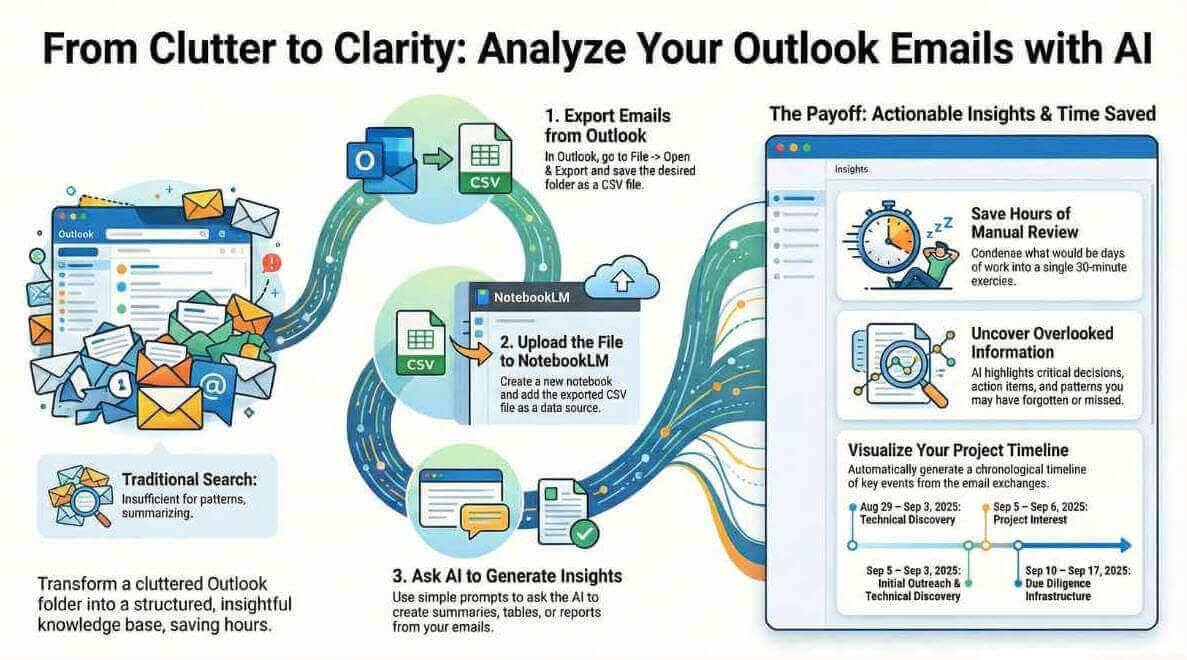
Turn Your Cluttered Outlook Folder into Actionable Insights with NotebookLM AI
Turn Your Cluttered Outlook Folder into Actionable Insights with NotebookLM AI
If you're drowning in emails and wondering how to extract real value from months of conversations, you're not alone. The good news? AI integration can help you analyze your Outlook folders in ways that go far beyond basic keyword searches.
I recently needed to dig through six months of back-and-forth emails in one of my Outlook folders. Sure, I could have used the search function, but I wanted something deeper - a way to catch important details I might have overlooked. That's when I turned to NotebookLM AI, and the results saved me hours of manual review.
Here's how I did it, and how you can too.
Why Traditional Email Search Falls Short - AI Data Integration Solves This
Let's be honest. Outlook's search is great for finding that one email about a specific topic. But when you need to understand patterns, extract key decisions, or summarize months of discussion? It's not built for that.
What I needed was AI data integration - something that could read through hundreds of emails and pull out what actually mattered. This is where integrating AI into business workflows starts to show its real power.
The Simple Process: Integrating AI into Your Outlook Workflow
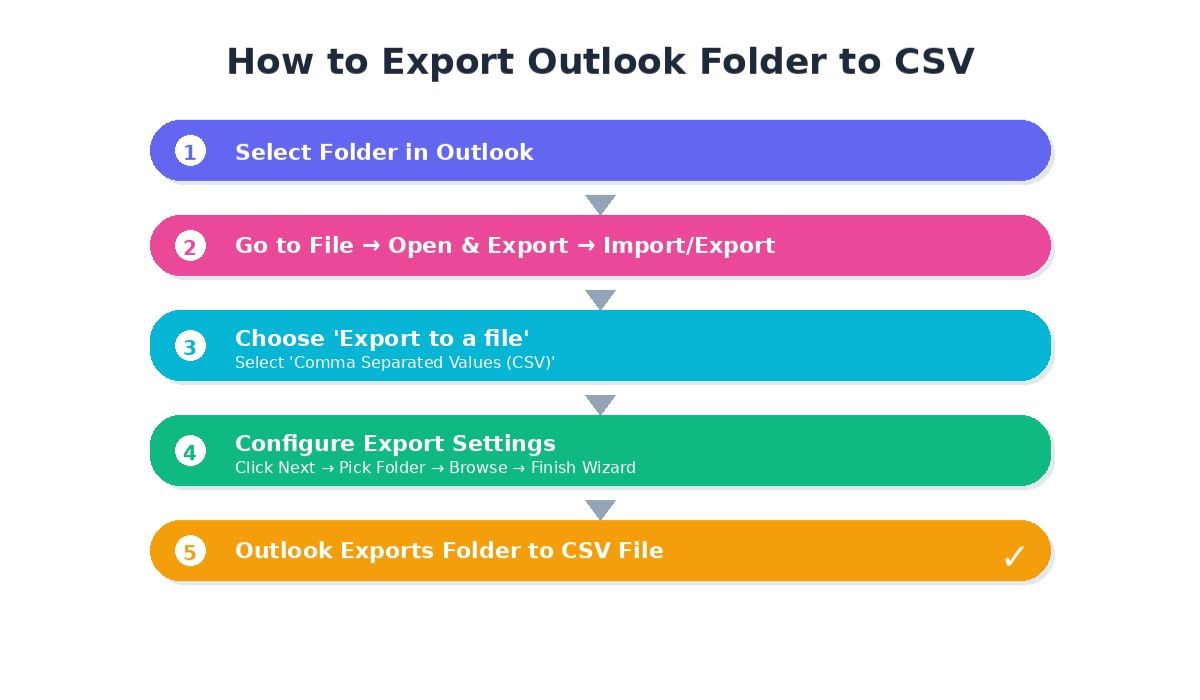
Step 1: Export Your Emails to CSV
First, I exported the entire Outlook folder as a CSV file. You could use PST format, but CSV works better for this kind of analysis since it's essentially a text file. This makes it easier for AI tools to process and analyze.
Step 2: Create a New Notebook in NotebookLM
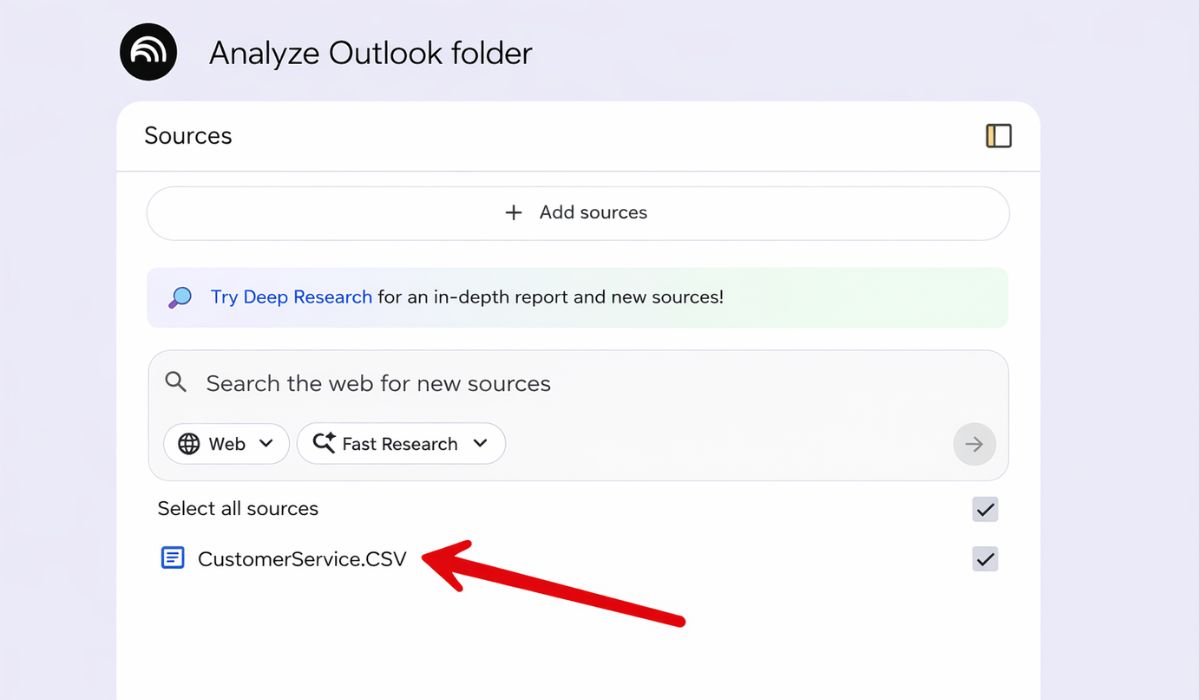
I opened NotebookLM and clicked "Create new notebook." Then I uploaded the CSV file directly into the platform. The interface is straightforward and no complicated setup required.
Step 3: Ask the Right Questions
Here's where the magic happens. In the chat area, I wrote this prompt:
"Provide key takeaway points and show it in a table ordered by date as an RTF file."
Within moments, NotebookLM generated a comprehensive table with all the critical points from my emails, organized chronologically. The best part? When you hover over the citation numbers in the table, it jumps right to the source line in the original CSV file. This means you can verify every detail instantly.
I saved this summary to my notes in NotebookLM so I could reference it later. Since it generated the output as RTF, I could copy the text and paste it directly into Word.
Results: What AI Email Analysis Actually Delivers
The results were better than I expected. NotebookLM automatically created around 20 detailed key points from my email exchanges. It didn't just list messages - it identified actual insights, decisions, and action items that mattered.
The AI even generated additional questions based on the content. One example: "How did Doron use AI to develop the SaaS lab application?" These auto-generated questions helped me think about the emails from different angles I hadn't considered.
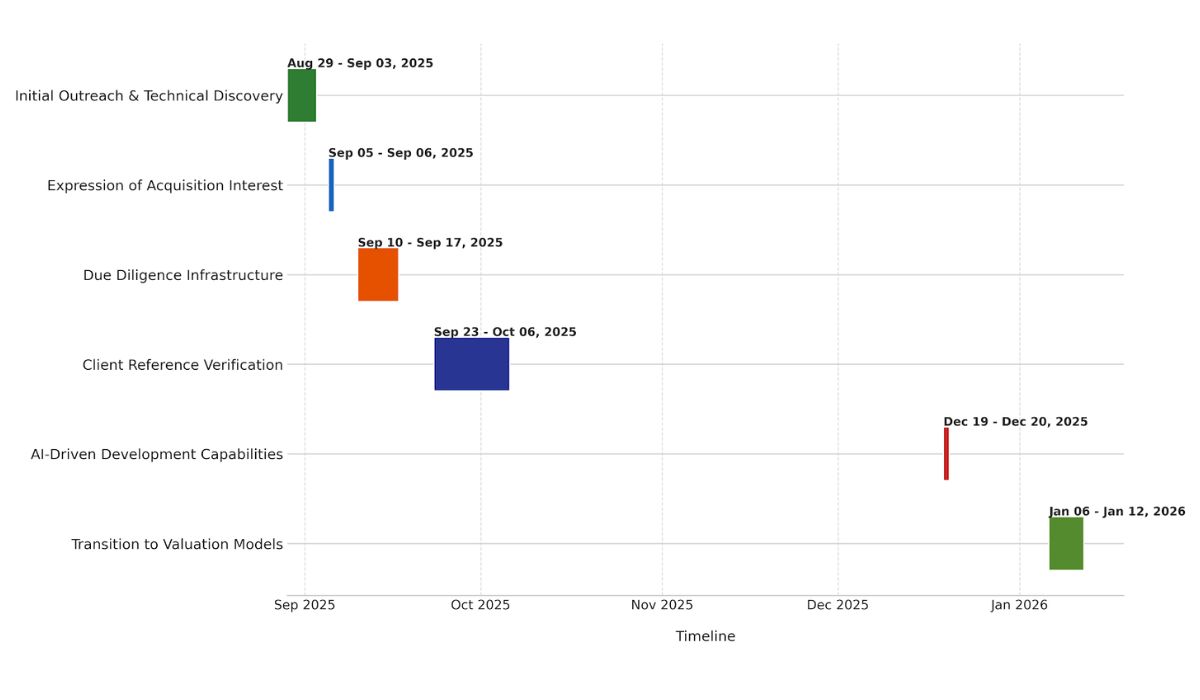
| Date | Key Takeaway Points | Citations |
| Aug 29 – Sep 3, 2025 | Initial Outreach & Technical Discovery: Note 1 | 2, 3 |
| Sep 5 – Sep 6, 2025 | Expression of Project Interest: Note 2 | 5, 6 |
| Sep 10 – Sep 17, 2025 | Due Diligence Infrastructure: Note 3 | 8, 9 |
| Sep 23 – Oct 6, 2025 | Client Reference Verification: Note 4 | 11, 12, 13 |
| Dec 19, 2025 | AI-Driven Development Capabilities: Note 5 | 15 |
| Jan 6 – Jan 12, 2026 | Transition to Valuation Models: Note 6 | 21, 22, 23 |
Here is a graphical presentation of the above. This is actualanalysis and project timeline.
Advanced AI Integration: Studio Reports for Deep Email Analysis
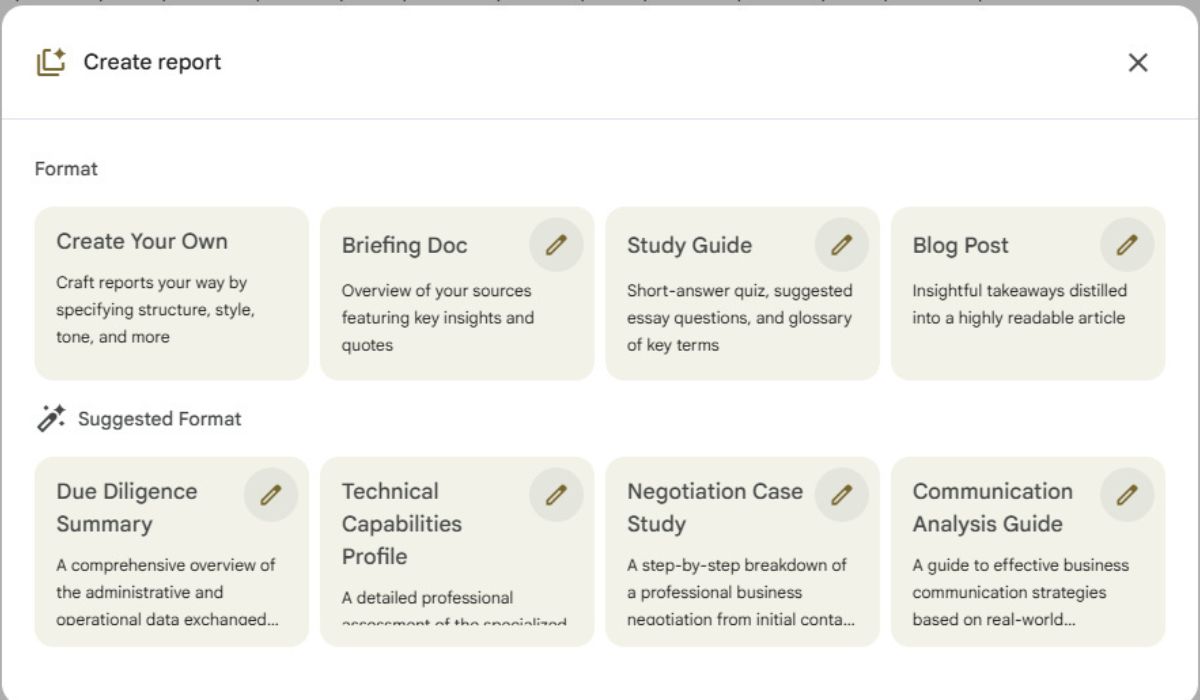
NotebookLM has a Reports option under their Studio section that takes this even further. I ran a "Due Diligence Summary" report, and it created an incredibly detailed analysis with multiple summary tables. It didn't just create any information, it helped me digest months of back-and-forth communication and extract the most important threads.
This feature alone turned what would have been days of manual review into a 30-minute exercise.
N8N Automation: Scale Your AI Email Analysis
Right now, this is a one-time process for me, so I handled it manually. But if you're dealing with regular email analysis - say, reviewing sales conversations every quarter or tracking project communications - you could absolutely build an N8N automation around this workflow.
Imagine setting up AI data integration where your Outlook folders automatically export to CSV at set intervals, upload to NotebookLM, generate reports, and deliver summaries right to your inbox. That's the kind of AI automation that can boost productivity tenfold.
In fact, I'm already thinking about offering this as a service to my clients. Sales teams especially could benefit from analyzing their communication folders with AI, spotting patterns in customer conversations they might have missed.
The Bottom Line: AI Integration for Business Email Management
Here's what integrating AI into business processes actually looks like in practice - it's not about replacing human judgment; it's about to introduce the informationyou need so you canmake better decisions faster.
For me, this process:
- Saved hours of manual email review.
- Highlighted critical points I'd genuinely forgotten about.
- Created a timeline visualization of important events.
- Gave me a searchable, organized reference for future use.
If you're sitting on folders full of valuable information buried in email threads, tools like NotebookLM can turn that chaos into clarity. The technology is here, it's accessible, and it actually works.
Whether you're analyzing client communications, project updates, or internal discussions, AI integration doesn't have to be complicated. Sometimes the most powerful automation is the one that helps you understand what you already have.
Ready to integrate AI into your workflow? Start simple - pick one folder, export it, and see what insights are hiding in plain sight. You might be surprised at what you've been missing. But we can automate this for you just call us @732-536-4765 or Contact Us.

I started to develop custom software since 1985 while using dBase III from Aston Tate. From there I moved to FoxBase and to FoxPro and ended up working with Visual FoxPro until Microsoft stopped supporting that great engine. With the Visual FoxPro, I developed the VisualRep which is Report and Query Engine. We are also a dot net development company, and one of our projects is a web scrapping from different web sites. We are Alpha AnyWhere developers, and the Avis Car Rental company trusted us with their contract management software that we developed with the Alpha Five software Engine.
Comments